Caching Task Outputs
You can cache task outputs to reuse them in subsequent workflow executions. When you enable caching, the system stores the task output for a specified duration and reuses it when the same task runs again with matching input parameters. This feature can be configured in the task configuration.
5-minute path
Add cacheConfig.key and cacheConfig.ttlInSecond to the task configuration. Build the key only from task input values that determine the output.
When to use caching
Good fits:
- Read-only HTTP calls
- Document fetches
- Embedding lookups
- Database reads
- Expensive deterministic transforms
- Provider calls where repeated identical requests should reuse the same result
Avoid caching:
- Non-deterministic outputs
- Mutating operations
- User-specific data without a user-specific cache key
- Sensitive values that should not be reused across contexts
- Calls where freshness matters more than cost
Supported tasks
Caching is available for the following task types:
- Worker (Simple)
- HTTP
- HTTP Poll
- Business Rule
- SendGrid
- JDBC
- Get Signed JWT
- gRPC
- Opsgenie
- Yield
- LLM Text Complete
- LLM Generate Embeddings
- LLM Store Embeddings
- LLM Get Embeddings
- LLM Index Document
- Get Document
- LLM Index Text
- LLM Search Index
- LLM Chat Complete
- Chunk Text
Parameters
Configure the following parameters to enable task caching in your task configuration.
| Parameter | Description | Required/ Optional |
|---|---|---|
| cacheConfig.key | The cache key is a unique identifier for the cached output and must be constructed exclusively from the task’s input parameters. It can be a string concatenation that contains the task’s input keys, such as ${uri}-${method} or re_${uri}_${method}. |
Required. |
| cacheConfig.ttlInSecond | The time to live in seconds, which is the duration for the output to be cached. | Required. |
Configuration
To configure caching, add the cacheConfig object to your task configuration:
Cache key design
When designing cacheConfig.key, include every task input value that can affect the task's output. Omitting a relevant input value can cause the task to return an incorrect cached result when that value changes between executions.
| Key design | Example | Outcome |
|---|---|---|
| Good — includes all inputs that affect the output | "key": "${url}-${mediaType}-${workflow.input.tenantId}" |
Distinguishes cached results correctly across url, mediaType, and tenantId |
| Risky — omits inputs that affect the output | "key": "${url}" |
Ignores mediaType and tenantId, so it can return the wrong cached result if those values differ between executions |
Using workflow input in a cache key
To reference a workflow input in cacheConfig.key, first map it to a task input parameter, then reference that task input parameter in the key. The key itself can only reference the task's input parameters, not workflow.input directly.
For example, the following task maps workflow.input.url and workflow.input.userId to task input parameters, then uses those task input parameters (url, mediaType, userId) to build the cache key:
{
  "name": "get_document",
  "taskReferenceName": "get_document_ref",
  "type": "GET_DOCUMENT",
  "inputParameters": {
    "url": "${workflow.input.url}",
    "mediaType": "application/pdf",
    "userId": "${workflow.input.userId}"
  },
  "cacheConfig": {
    "key": "${url}-${mediaType}-${userId}",
    "ttlInSecond": 300
  }
}
Task behavior with caching
Before a task is scheduled, the server checks if there is cached output for the given task definition name by matching the cache key. If a match is found, the task is not scheduled, and the cached output is used to complete it.
If no cached output is found, the task is scheduled as usual. When the task completes successfully, the output is cached under the specified cache key for the specified duration.
Example
Cache hit
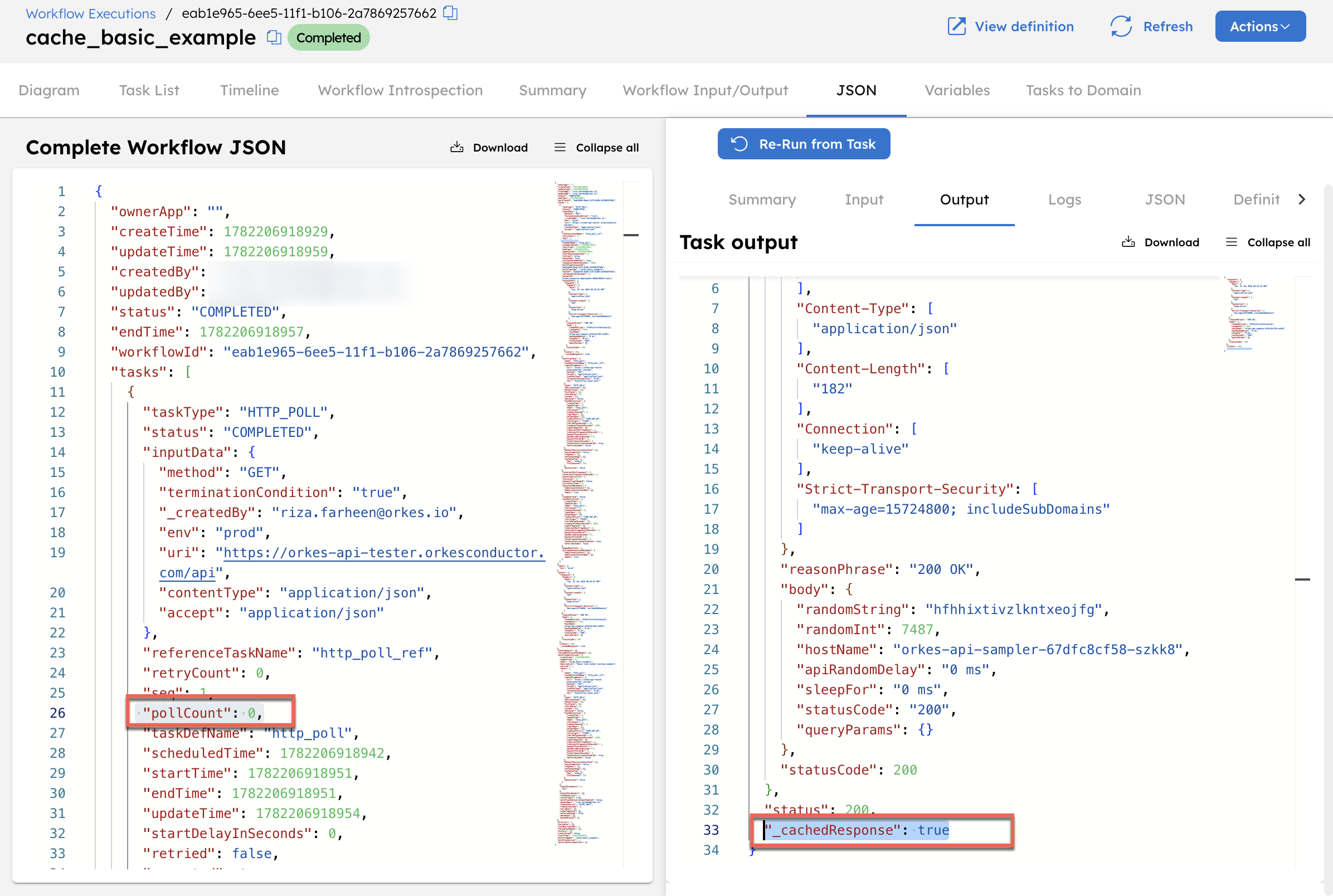
Run the following workflow twice with the same input. The second run returns the cached result.
To create and run workflow from Conductor UI:
- Go to Definitions > Workflow from the left navigation menu on your Conductor UI.
- Select + Define workflow and paste the following code in the Code tab:
{
  "name": "cache_basic_example",
  "description": "Basic task output caching example",
  "version": 1,
  "tasks": [
    {
      "name": "http_poll",
      "taskReferenceName": "http_poll_ref",
      "type": "HTTP_POLL",
      "inputParameters": {
        "uri": "https://orkes-api-tester.orkesconductor.com/api",
        "method": "GET",
        "accept": "application/json",
        "contentType": "application/json",
        "terminationCondition": "true",
        "env": "${workflow.input.env}"
      },
      "cacheConfig": {
        "key": "${env}",
        "ttlInSecond": 120
      }
    }
  ],
  "inputParameters": ["env"],
  "outputParameters": {},
  "schemaVersion": 2
}
- Go to the Run tab and run the workflow using the following input:
- For the first execution (cache miss): The task executes the API call, and the
pollCountis 1. The result is stored in cache under keyprodfor 120 seconds. - For the second execution with the same input (cache hit): The cached result is returned immediately without executing the task. The task output includes
_cachedResponse: trueandpollCountis 0.
Cache miss
Run the workflow with a different input. A different cache key is computed, so no cached result is found and the task executes fresh.
Use the same workflow definition as Cache hit example. First run with input as “env”:”prod” and then run using a different input:
The cache key now resolves to staging, which has no cached entry. The task executes the API call. pollCount is 1 and there is no _cachedResponse in the output.
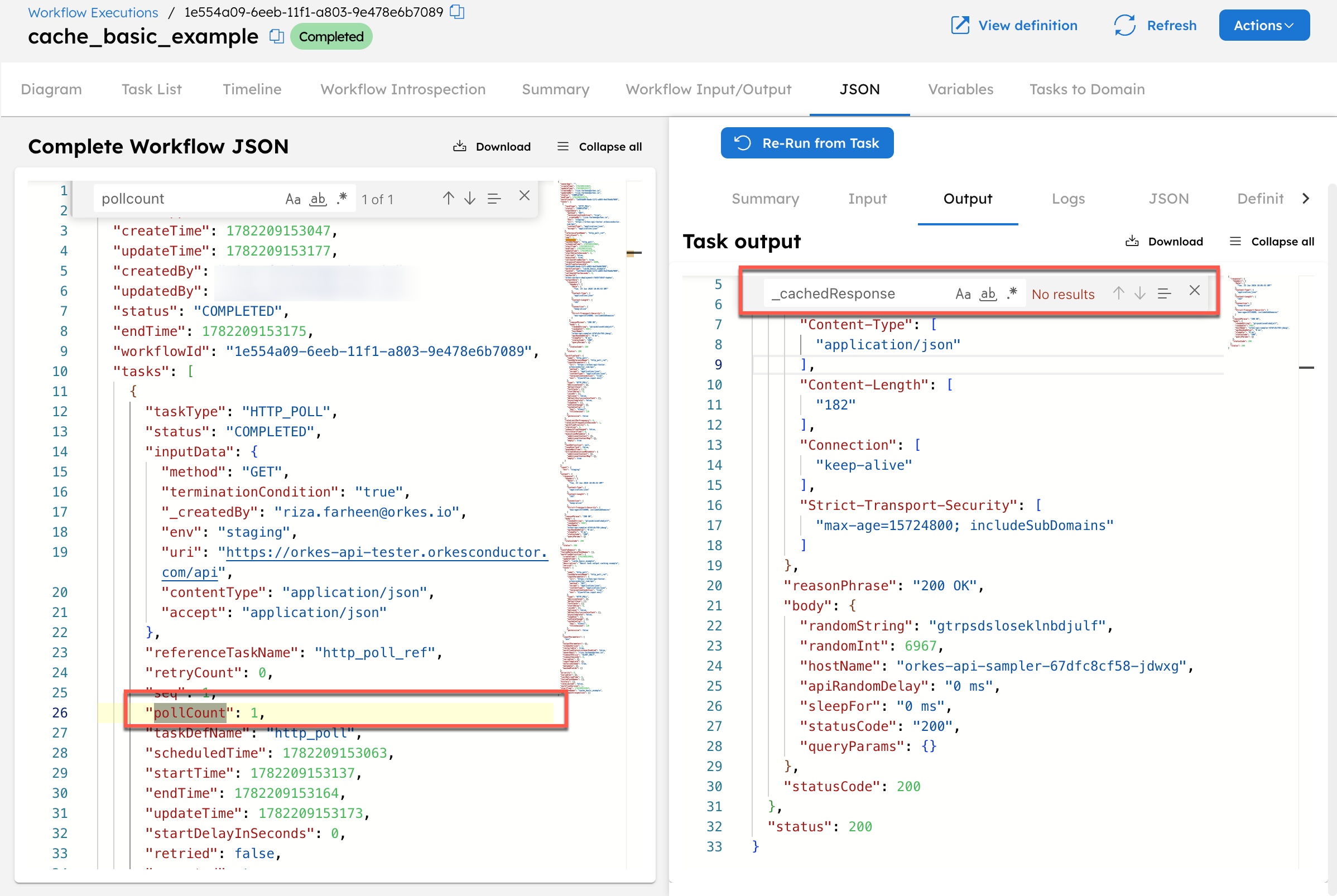
Each unique cache key has its own independent cache entry. Running with env: "prod" and env: "staging" are treated as separate executions.
Cache expiry (TTL)
When the TTL expires, the cached result is discarded and the next run executes the task fresh.
To create and run workflow from Conductor UI:
- Go to Definitions > Workflow from the left navigation menu on your Conductor UI.
- Select + Define workflow and paste the following code in the Code tab:
{
  "name": "cache_ttl_example",
  "description": "Demonstrates cache expiry using a short TTL",
  "version": 1,
  "tasks": [
    {
      "name": "http_poll",
      "taskReferenceName": "http_poll_ref",
      "type": "HTTP_POLL",
      "inputParameters": {
        "uri": "https://orkes-api-tester.orkesconductor.com/api",
        "method": "GET",
        "accept": "application/json",
        "contentType": "application/json",
        "terminationCondition": "true"
      },
      "cacheConfig": {
        "key": "ttl_test_key",
        "ttlInSecond": 30
      }
    }
  ],
  "inputParameters": [],
  "outputParameters": {},
  "schemaVersion": 2
}
- Run the workflow once and then a second time immediately.
- Wait for 30 seconds and run for a third time.
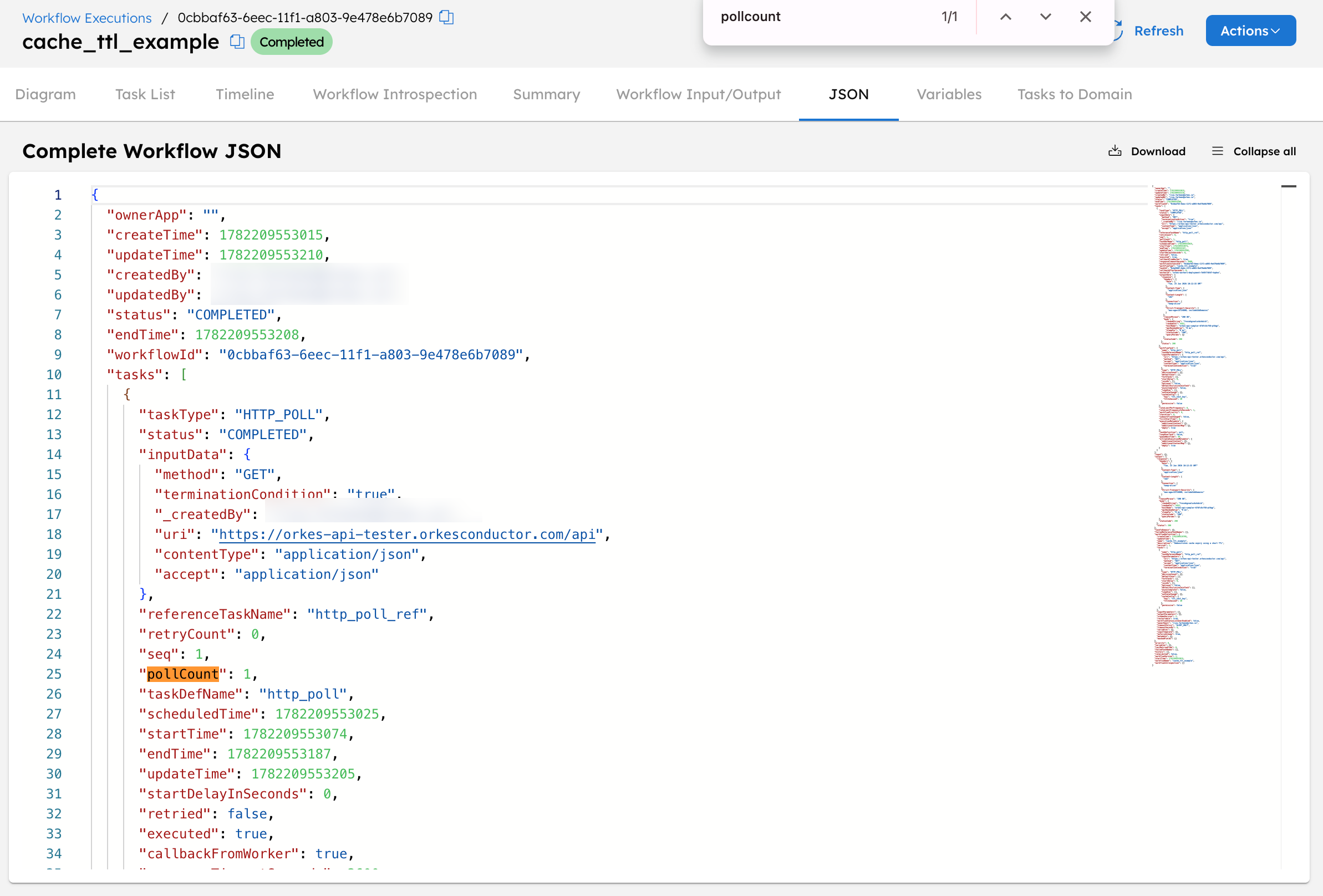
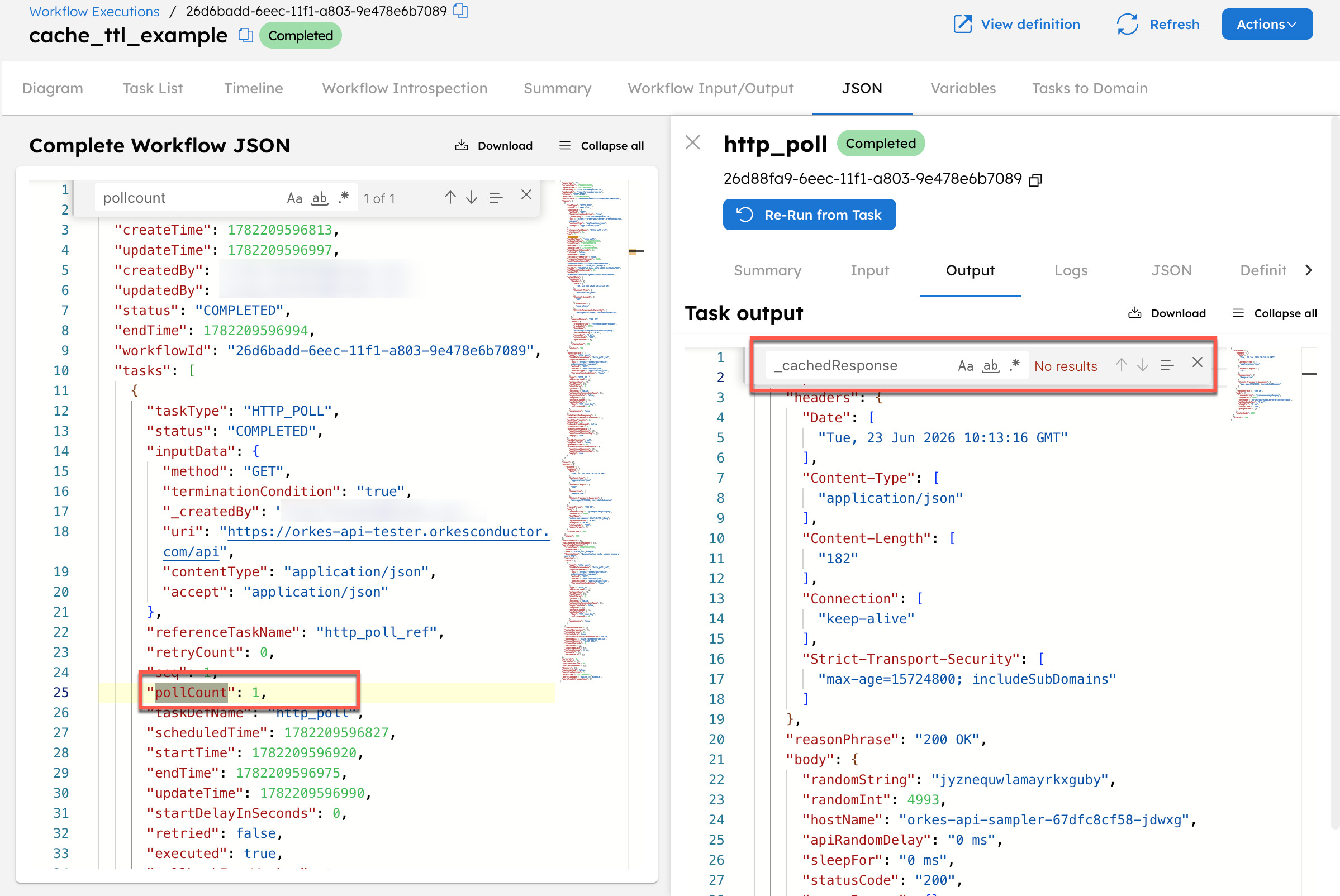
For the first execution: Task executes the API call. The result is cached for 30 seconds, and the pollCount is 1.
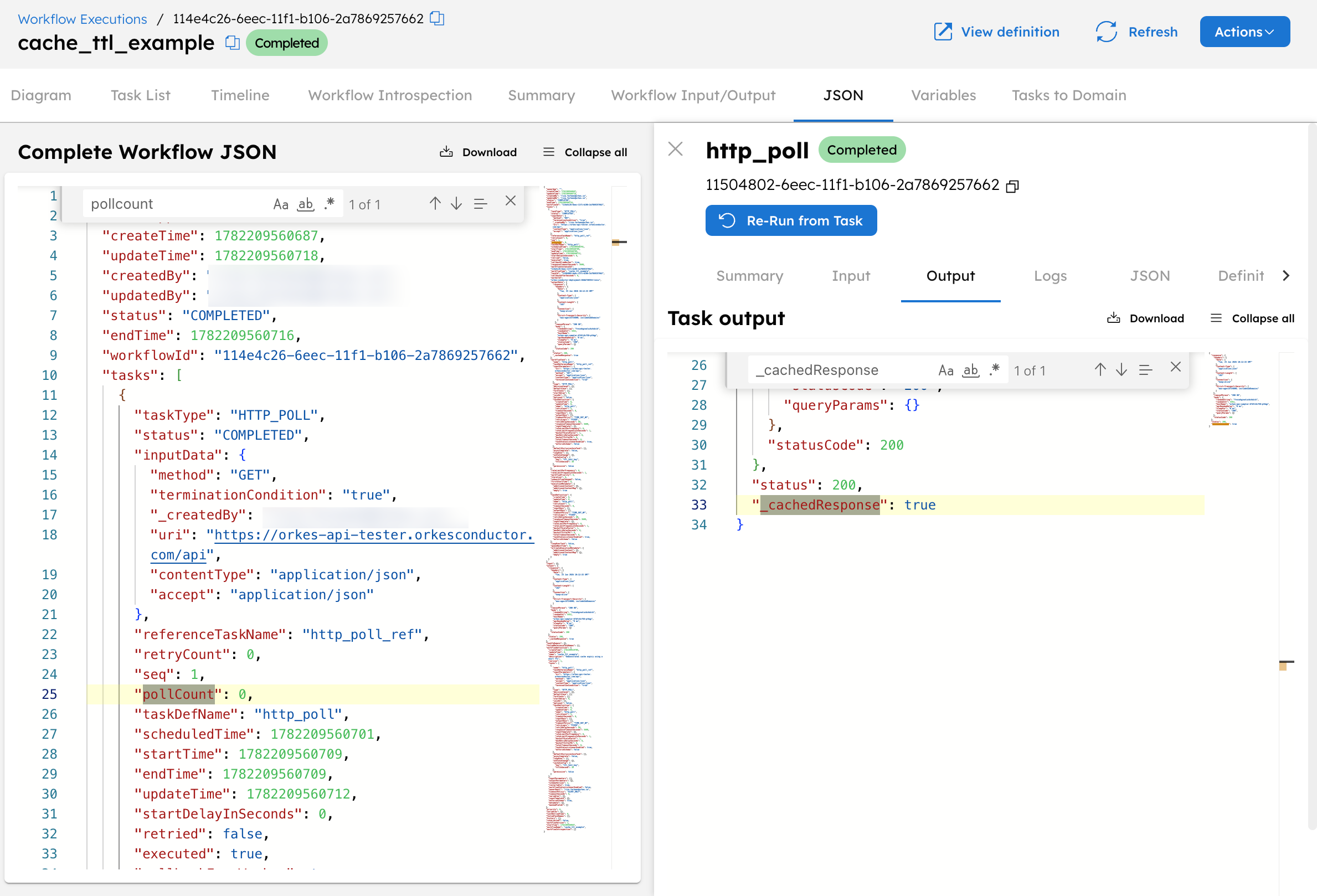
For the second execution within 30 seconds (cache hit): Cached result is returned. _cachedResponse: true and the pollCount is 0.
For the third execution after 30 seconds (cache miss): The cache entry has expired. The task executes the API call again. pollCount is 1 and there is no _cachedResponse.
Cache output using task input parameters
Cache the task output based on a value passed directly in the task's inputParameters. Here, the method field is used as part of the cache key, so GET and POST requests are cached separately.
To create and run workflow from Conductor UI:
- Go to Definitions > Workflow from the left navigation menu on your Conductor UI.
- Select + Define workflow and paste the following code in the Code tab:
{
  "name": "cache_task_input_example",
  "description": "Demonstrates caching task output using task input parameters",
  "version": 1,
  "tasks": [
    {
      "name": "http_poll",
      "taskReferenceName": "http_poll_ref",
      "type": "HTTP_POLL",
      "inputParameters": {
        "uri": "https://orkes-api-tester.orkesconductor.com/api",
        "method": "${workflow.input.method}",
        "accept": "application/json",
        "contentType": "application/json",
        "terminationCondition": "true"
      },
      "cacheConfig": {
        "key": "api_${method}",
        "ttlInSecond": 120
      }
    }
  ],
  "inputParameters": ["method"],
  "outputParameters": {},
  "schemaVersion": 2
}
- Go to the Run tab and run the workflow once and then a second time immediately using the following input:
For the first execution (cache miss): The cache key resolves to api_GET. No cached entry exists. The task executes the API call. pollCount is 1.
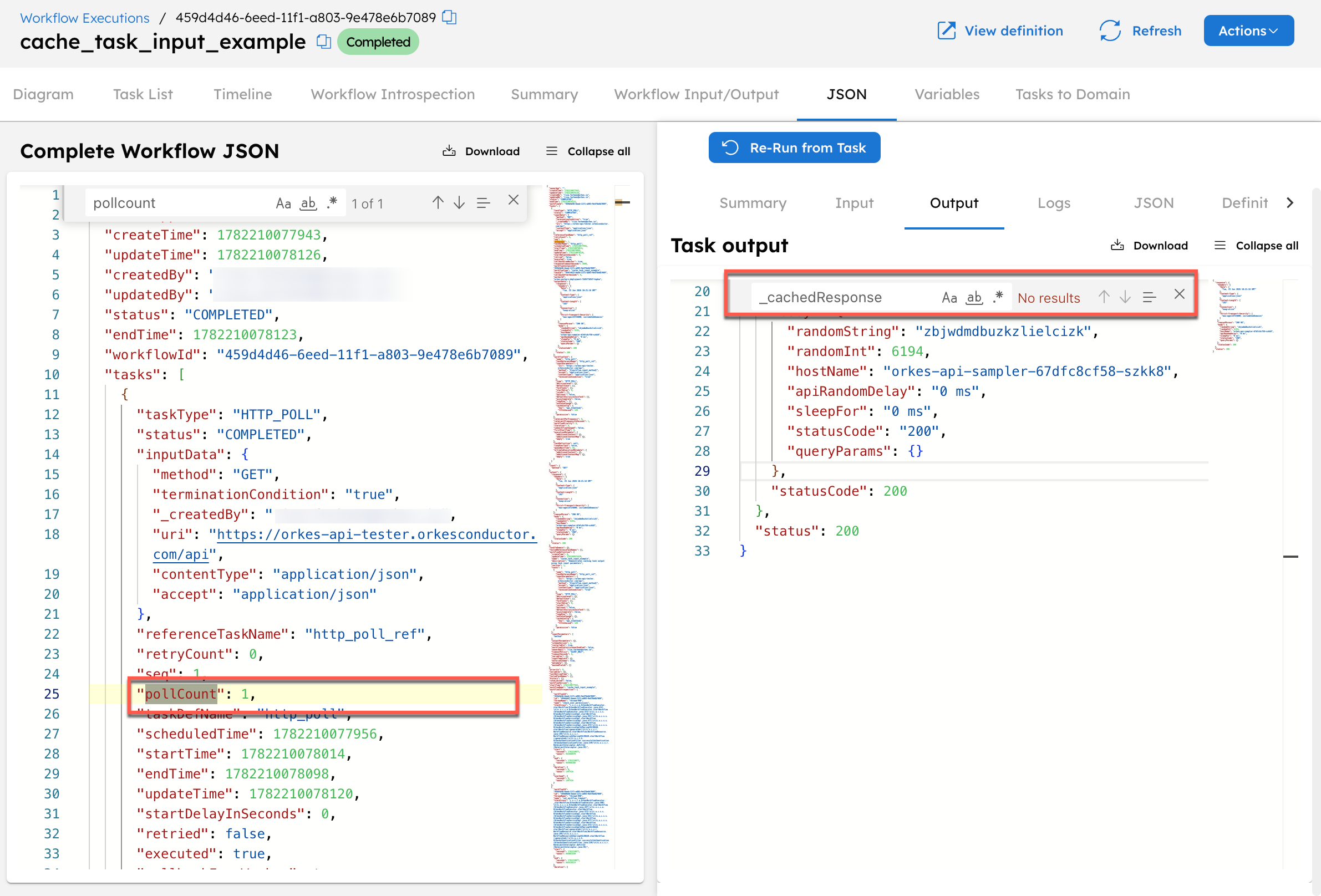
For the second execution with the same input (cache hit): The cache key resolves to api_GET again. The cached result is returned immediately.
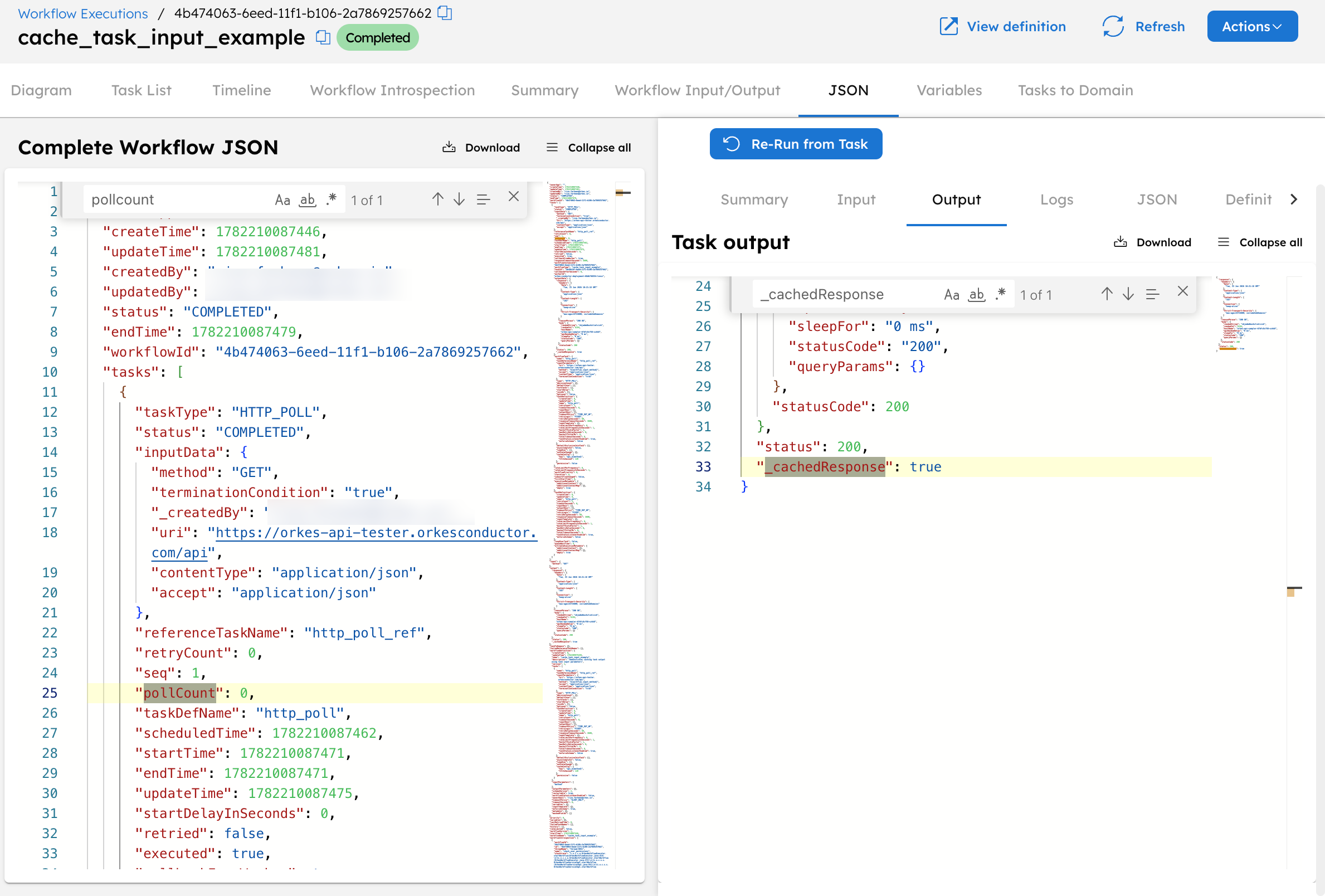
Running with "method": "POST" computes the key api_POST — a cache miss. GET and POST results are cached independently.
Cache output using workflow inputs
Cache the task output based on a workflow-level input. Each unique input value gets its own cache entry.
- Go to Definitions > Workflow from the left navigation menu on your Conductor UI.
- Select + Define workflow and paste the following code in the Code tab:
{
  "name": "cache_workflow_input_example",
  "description": "Demonstrates caching task output using workflow input parameters",
  "version": 1,
  "tasks": [
    {
      "name": "http_poll",
      "taskReferenceName": "http_poll_ref",
      "type": "HTTP_POLL",
      "inputParameters": {
        "uri": "https://orkes-api-tester.orkesconductor.com/api",
        "method": "GET",
        "accept": "application/json",
        "contentType": "application/json",
        "terminationCondition": "true",
        "userId": "${workflow.input.userId}"
      },
      "cacheConfig": {
        "key": "user_${userId}",
        "ttlInSecond": 120
      }
    }
  ],
  "inputParameters": ["userId"],
  "outputParameters": {},
  "schemaVersion": 2
}
- Go to the Run tab and run the workflow once and then a second time immediately using the following input:
For the first execution (cache miss): The cache key resolves to user_user-123. No cached entry exists. The task executes the API call, and the pollCount is 1.
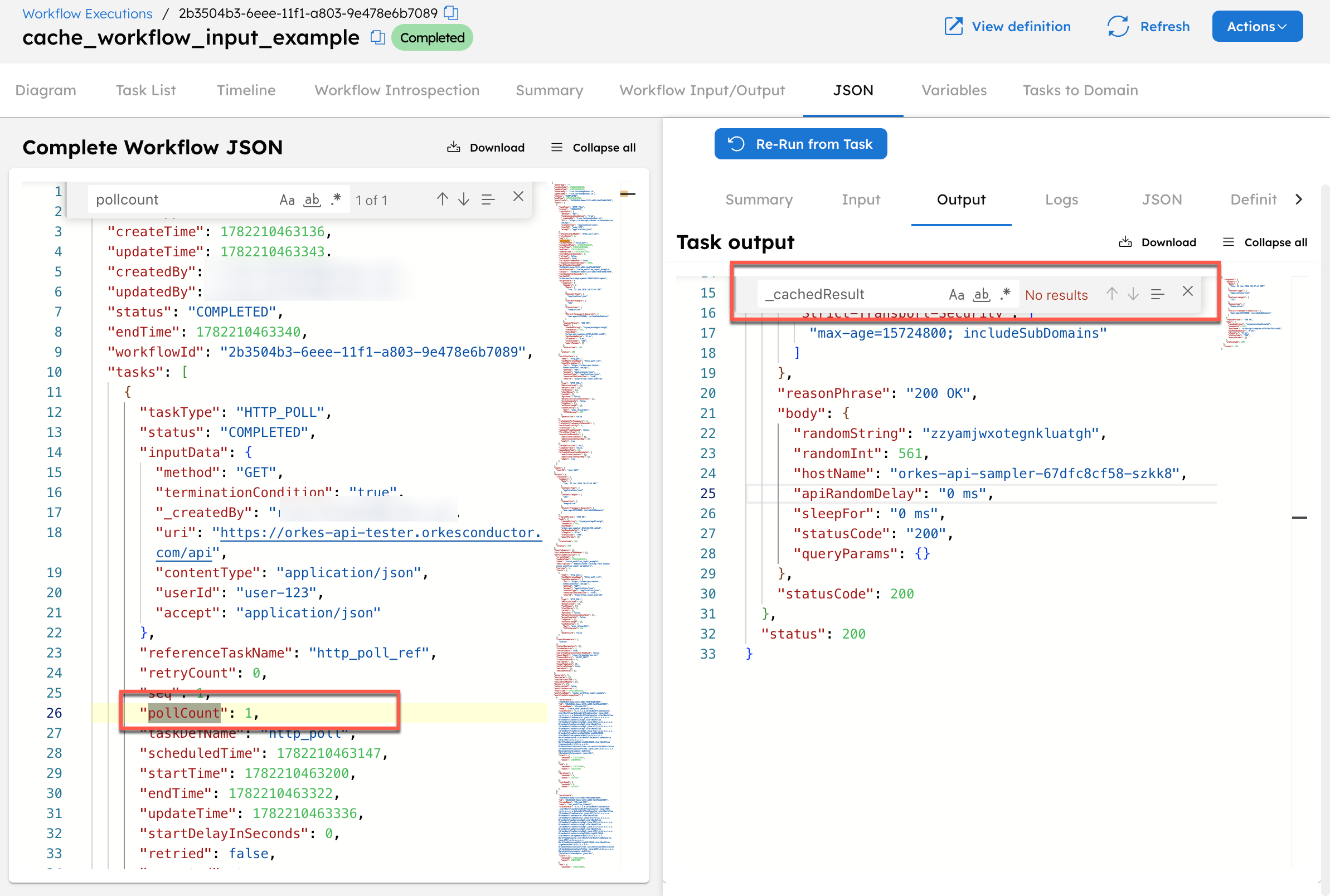
For the second execution with the same userId (cache hit): The cache key resolves to user_user-123 again. The cached result is returned immediately.
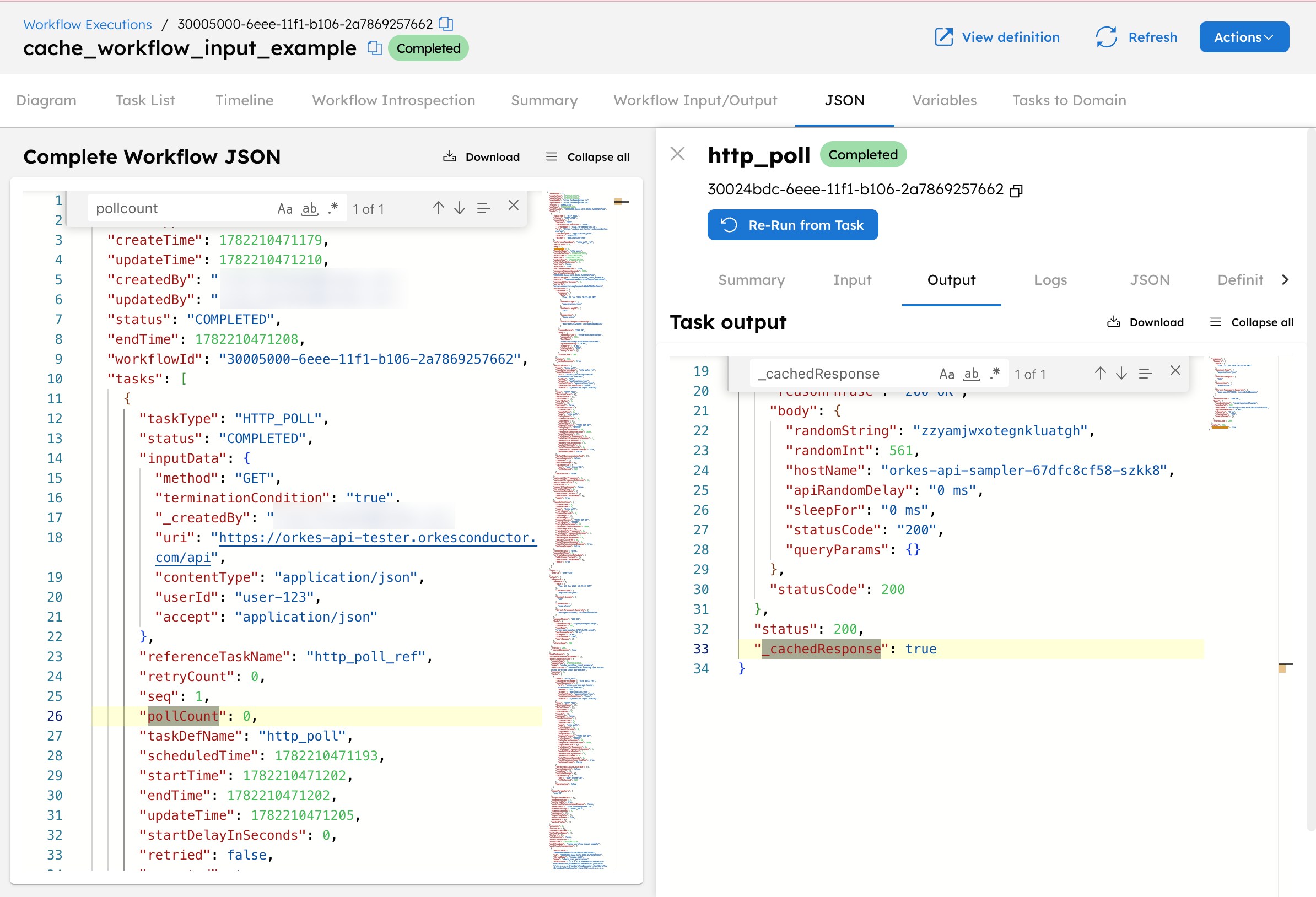
Running with another workflow input is a cache miss. Each user ID has its own independent cache entry.
Cache output using variables from previous tasks
Cache the task output based on a value set by an earlier task in the workflow. The Set Variable task captures the input and stores it as a workflow variable, which is then referenced in the cache key.
- Go to Definitions > Workflow from the left navigation menu on your Conductor UI.
- Select + Define workflow and paste the following code in the Code tab:
{
  "name": "cache_variable_example",
  "description": "Demonstrates caching task output using variables from a previous task",
  "version": 1,
  "tasks": [
    {
      "name": "set_variable",
      "taskReferenceName": "set_variable_ref",
      "type": "SET_VARIABLE",
      "inputParameters": {
        "region": "${workflow.input.location}"
      }
    },
    {
      "name": "http_poll",
      "taskReferenceName": "http_poll_ref",
      "type": "HTTP_POLL",
      "inputParameters": {
        "uri": "https://orkes-api-tester.orkesconductor.com/api",
        "method": "GET",
        "accept": "application/json",
        "contentType": "application/json",
        "terminationCondition": "true",
        "cacheKey": "${workflow.variables.region}"
      },
      "cacheConfig": {
        "key": "re_${cacheKey}",
        "ttlInSecond": 120
      }
    }
  ],
  "inputParameters": ["location"],
  "outputParameters": {},
  "schemaVersion": 2
}
- Go to the Run tab and run the workflow once and then a second time immediately using the following input:
For the first execution (cache miss): The Set Variable task runs first and stores us-east-1 as the workflow variable region. The HTTP Poll task resolves ${workflow.variables.region} to us-east-1 and computes the cache key re_us-east-1. No cached entry exists. The task executes the API call. pollCount is 1.
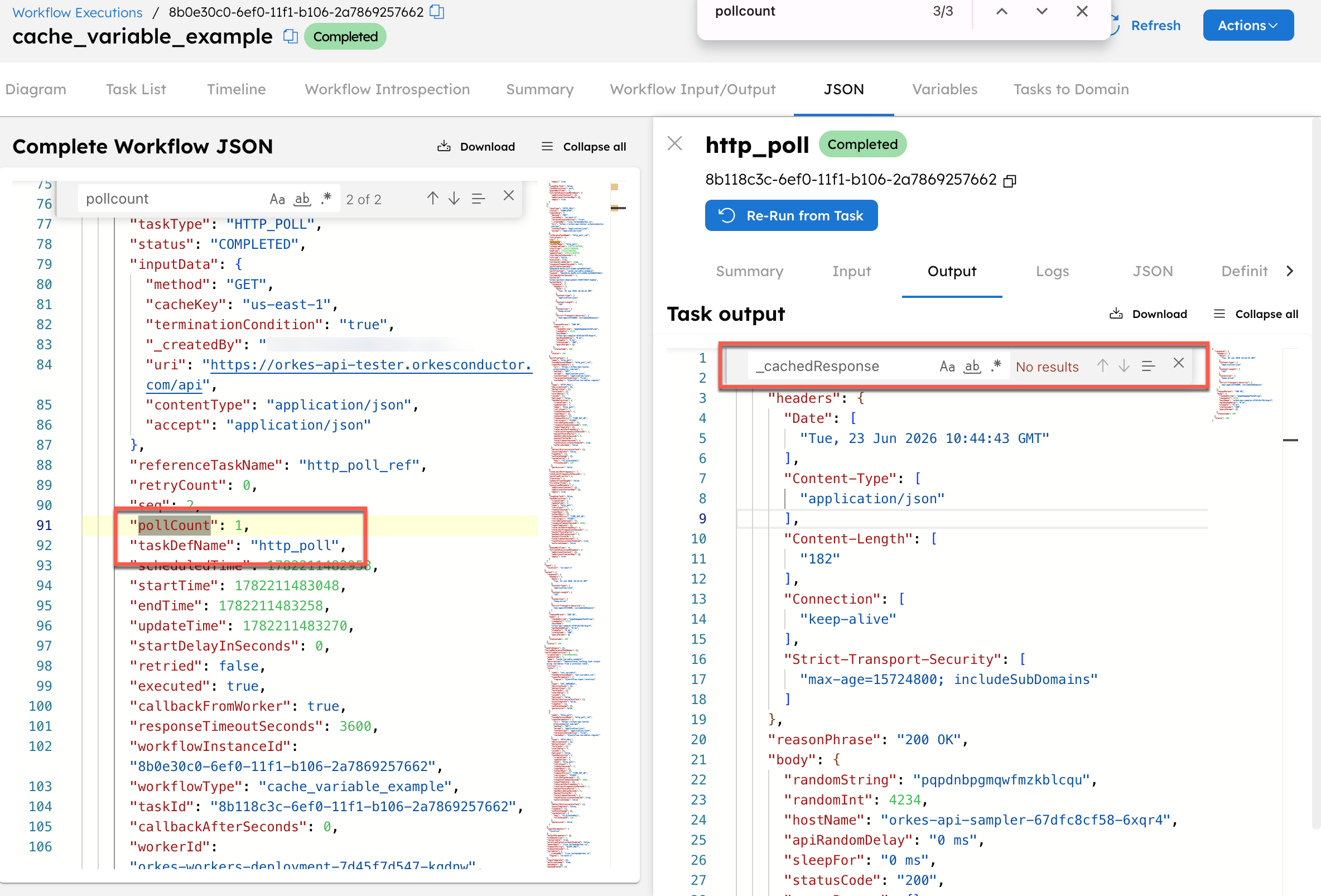
For the second execution with the same location (cache hit): The cache key resolves to re_us-east-1 again. The cached result is returned immediately.
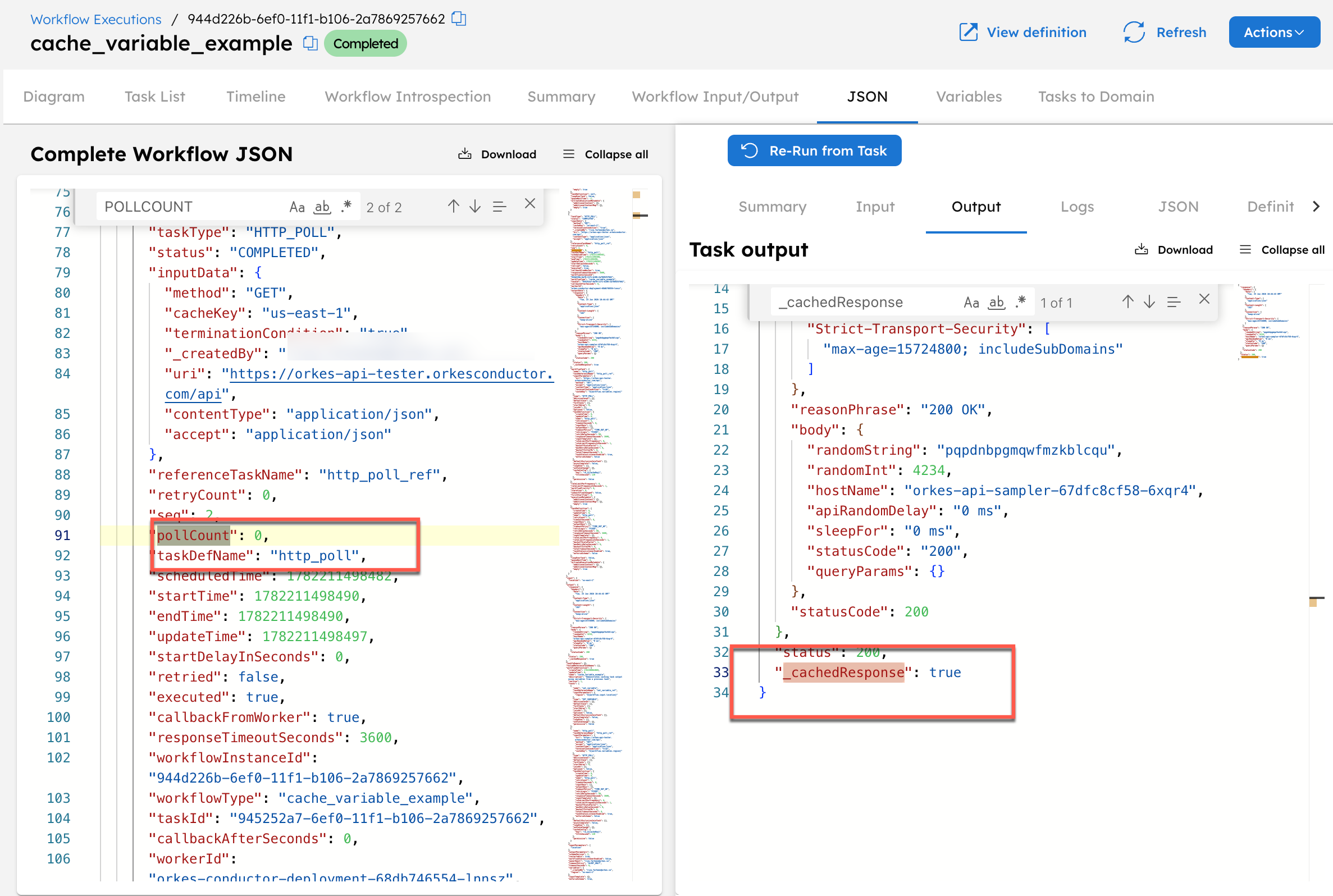
Running with another workflow input is a cache miss. Each region has its own independent cache entry.
Production notes
- Keep TTL short until you know the data freshness requirements.
- Include tenant, user, region, language, model, and version fields when they affect output.
- Do not cache mutating requests.
- Monitor cache hit rate and stale-data incidents.
- Treat cache key changes as behavior changes and test them with representative input.